How to update MB WhatsApp without losing your chats.
Introduction
Keeping MB WhatsApp updated is important for maintaining security, improving performance, fixing bugs, and accessing the latest features. However, many users hesitate to install updates because they fear losing their chats, photos, videos, documents, and other important data.
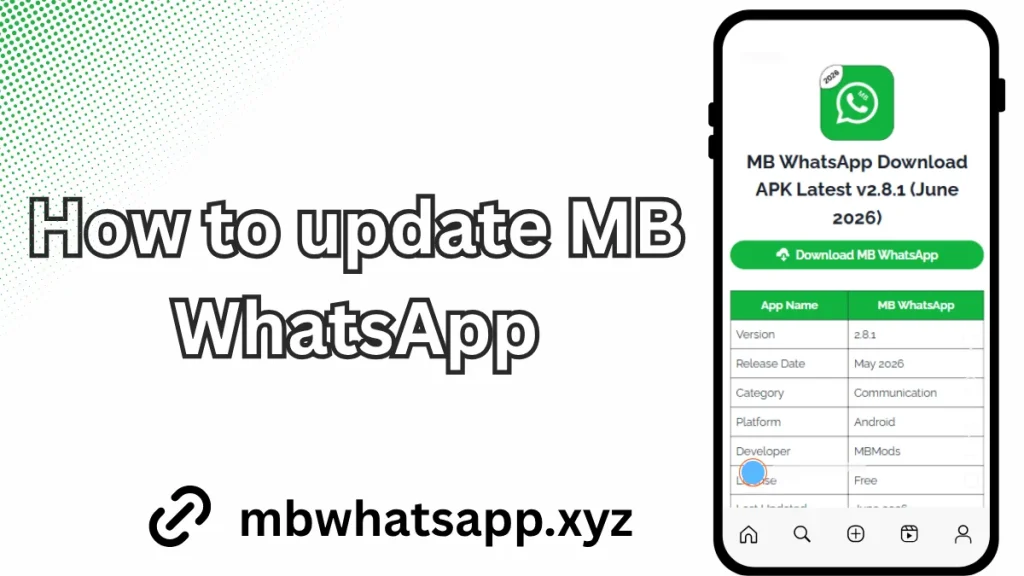
The good news is that updating MB WhatsApp without losing your chats and media is usually a straightforward process when done correctly. By creating a backup before installing the latest version and following a few simple precautions, you can update the app safely while preserving all your conversations and files.
This guide explains how to update MB WhatsApp without losing your chats and media in 2026, including backup methods, installation steps, troubleshooting tips, and best practices.
Why You Should Keep MB WhatsApp Updated
Updating MB WhatsApp regularly helps ensure that you are using the most stable and feature-rich version available.
Access New Features
Developers frequently introduce new customization options, privacy settings, and messaging tools through updates. Installing the latest version allows you to enjoy these improvements as soon as they become available.
Improve Performance
Updates often include performance optimizations that make the application run more smoothly on modern Android devices.
Fix Bugs and Errors
Older versions may contain bugs that cause crashes, notification issues, or other problems. Updating can resolve many of these issues.
Enhance Compatibility
New Android versions are released every year. MB WhatsApp updates help maintain compatibility with the latest Android devices and operating systems.
What Happens If You Update MB WhatsApp Correctly?
When the update process is completed properly, your existing data remains intact. This includes:
Chat Conversations
All personal and group chats remain available after the update.
Photos and Videos
Images, videos, voice notes, and documents continue to be stored on your device.
Privacy Settings
Most privacy and customization settings are preserved during the update process.
Themes and Customizations
In many cases, your selected themes and interface customizations will remain unchanged after updating.
Backup Your MB WhatsApp Before Updating
Creating a backup is the most important step before installing any update.
Open MB WhatsApp Settings
Launch MB WhatsApp and access the settings menu.
Navigate to Chats
Open the Chats section where backup options are available.
Create a Local Backup
Start a new backup and wait for the process to finish completely.
Verify Backup Completion
Ensure that the backup file has been successfully created before proceeding with the update.
How to Create an Additional Manual Backup
While the built-in backup feature is helpful, creating a manual backup provides extra protection.
Open File Manager
Use your Android file manager application to access internal storage.
Locate the MB WhatsApp Folder
Find the folder that contains your MB WhatsApp data, including chats and media files.
Copy Important Data
Copy the entire folder to another location on your device, SD card, or computer.
Store Backup Securely
Keeping a secondary backup ensures that your data remains safe even if unexpected issues occur during the update process.
How to Download the Latest MB WhatsApp Version
Before updating, make sure you obtain the correct APK version.
Check the Current Version
Open MB WhatsApp settings and view the version information.
Download the Latest Release
Download the newest APK file from a trusted source that provides authentic and updated versions.
Verify File Information
Review the version number, release date, and file size to ensure you are downloading the correct update.
Scan the APK File
For additional security, scan the APK with a trusted antivirus application before installation.
How to Update MB WhatsApp Without Uninstalling It
This is the safest method because it preserves your chats and media automatically.
Keep the Existing Version Installed
Do not uninstall your current MB WhatsApp application.
Locate the New APK File
Open your Downloads folder and find the updated APK file.
Install the APK
Tap the APK and proceed with installation.
Allow the Update Process
Android will recognize the existing application and offer an update option.
Complete Installation
Wait for the update process to finish. Your existing data should remain untouched.
Launch MB WhatsApp
Open the updated version and verify that all chats and media are still available.
Why You Should Avoid Uninstalling MB WhatsApp Before Updating
Many users mistakenly uninstall the old version before installing the new one.
Risk of Data Loss
Removing the application may delete important files depending on device settings.
Missing Backup Files
Without a recent backup, restoring chats can become difficult.
Additional Setup Required
You may need to verify your phone number and restore backups manually.
For most updates, installing the new APK directly over the existing version is the safer option.
How to Restore Chats If Something Goes Wrong
If your chats disappear after updating, they can often be restored using a backup.
Reinstall MB WhatsApp
Install the same version that matches your backup files.
Verify Your Phone Number
Complete the verification process using your existing number.
Detect Available Backup
The application should automatically search for available backups.
Restore Data
Select the restore option and wait for chats and media to be recovered.
Common Problems During MB WhatsApp Updates
Some users encounter issues while updating. Fortunately, most can be resolved easily.
Update Failed
This may happen because of insufficient storage, corrupted APK files, or installation permission issues.
Ensure that enough storage space is available and download the APK again if necessary.
Application Crashes After Update
Clear the application cache and restart your device. If the issue persists, install the latest stable version.
Chats Missing
Verify that your backup files still exist and restore them during setup.
Media Files Not Appearing
Allow storage permissions and wait for the application to scan media folders.
Tips to Protect Your Chats and Media
Following a few best practices can help keep your data safe during future updates.
Create Regular Backups
Make backups frequently rather than waiting until an update becomes available.
Save Important Files Separately
Store important photos, videos, and documents in cloud storage or on a computer.
Keep Enough Free Storage
Low storage space can interfere with updates and backup creation.
Use Reliable Sources
Only download MB WhatsApp updates from trusted websites that provide authentic APK files.
Avoid Beta Versions
Unless you are specifically testing new features, stable versions are generally safer and less likely to cause data loss.
Frequently Asked Questions
Will Updating MB WhatsApp Delete My Chats?
No. If you install the update over the existing version and create a backup beforehand, your chats should remain safe.
Do I Need to Verify My Number Again?
In most cases, updating over the existing installation does not require phone number verification.
Can I Restore Deleted Chats After an Update?
If you have a backup created before the update, you can usually restore your chats successfully.
Will My Photos and Videos Be Lost?
Media files typically remain stored on your device after updating, especially when the application is updated without uninstalling it.
How Often Should I Update MB WhatsApp?
Installing updates whenever a stable version becomes available is generally recommended for better performance and security.
Conclusion
Updating MB WhatsApp without losing your chats and media is simple when you follow the correct process. The key is to create a complete backup before installing any new version and avoid uninstalling the existing application unless absolutely necessary.
By keeping regular backups, downloading updates from trusted sources, and installing new versions over the current installation, you can enjoy the latest MB WhatsApp features while keeping your conversations, photos, videos, and settings completely secure. Following these best practices will help ensure a smooth update experience throughout 2026 and beyond.